How to Add Radio in Bus Simulator Indonesia
If you want to listen to songs while driving, first add the radio to the game and insert a stream link. In this guide, you will learn the complete step-by-step method to add radio in Bus Simulator Indonesia, add your own songs, and play them while driving.
Check the Sound Settings
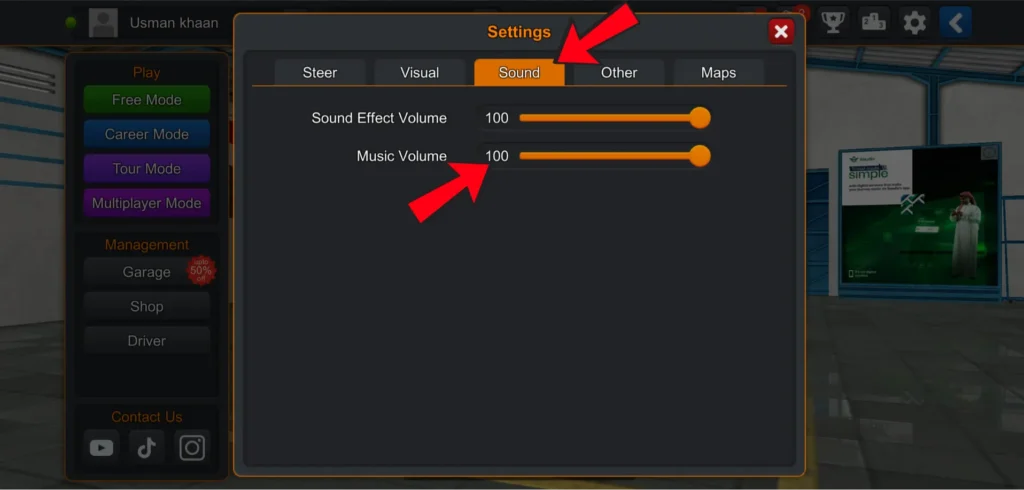
Set Music Volume to 100%
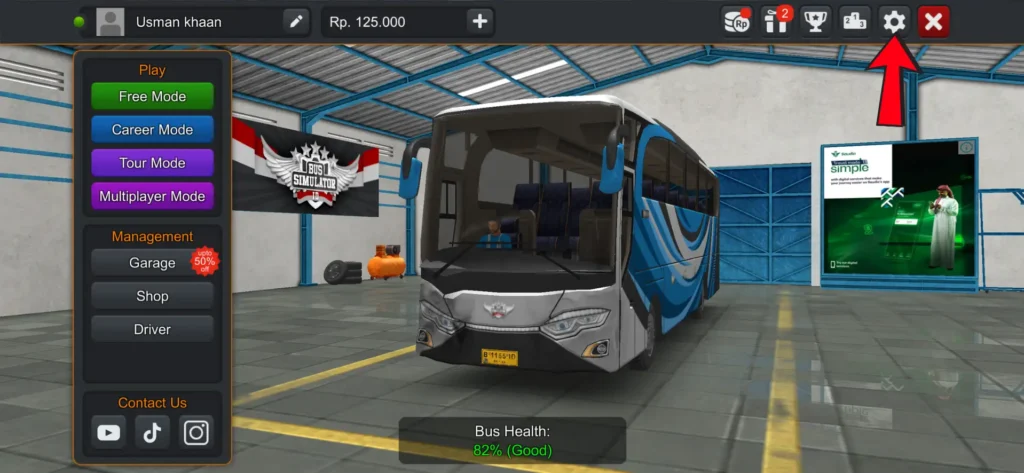
First, go to the Settings in the game and open the Sound section. Here you will see the Music Volume option. Set it to 100% (Full).
If the music volume is low, the radio sound will also be low, and even if the radio is playing, you may not be able to hear it properly.
Open the Garage
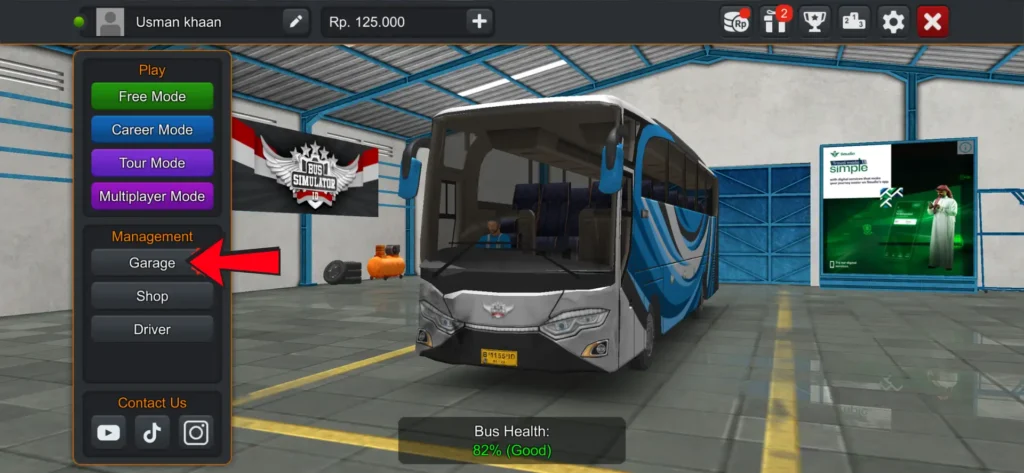
Now go to the garage in the game. At the top, you will see several icons. The last icon is the Music option. Click on it.
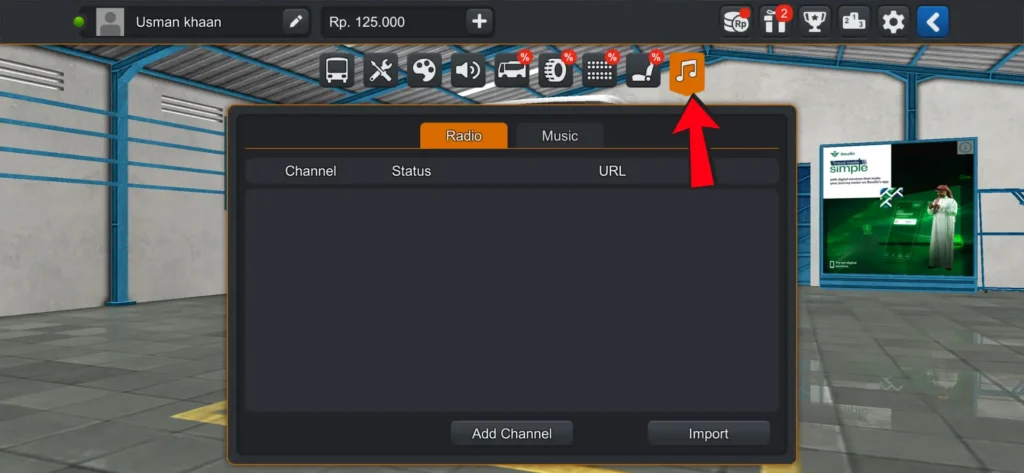
Select the Radio Option
Inside the Music section, you will see two options:
- Radio
- Music
First, select the Radio option.
Add Radio Channel
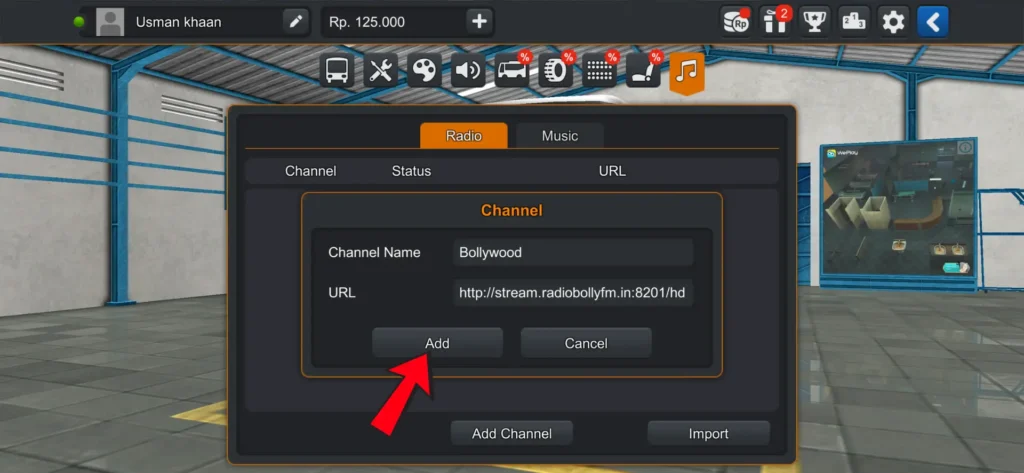
After selecting Radio, you will see the Add Channel option below. Click on it.
A popup will appear where you need to enter two things:
- Channel Name
- URL
You can choose any name for the channel.
In the URL field, add the stream link given below. Make sure to paste the same link in the URL field; otherwise, the radio will not play in the game.
Stream link:
http://stream.radiobollyfm.in:8201/hd
After entering the name and link, click on Add.
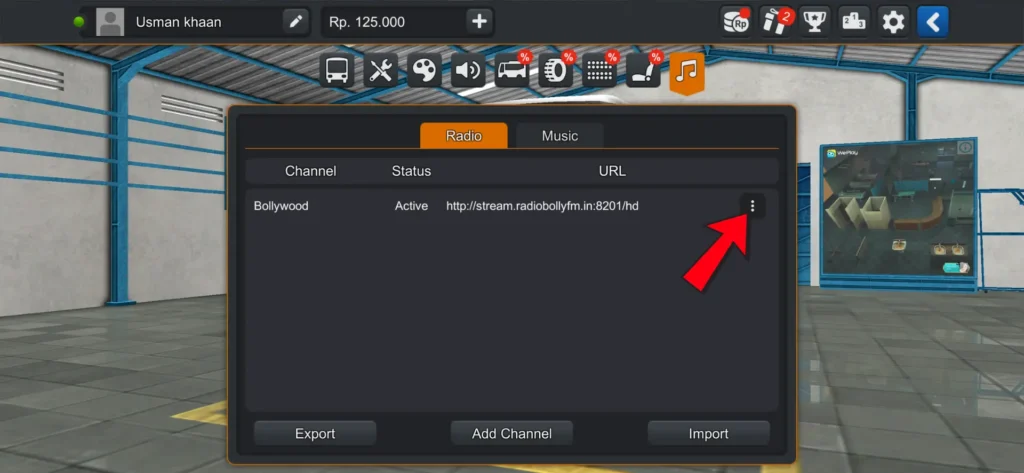
Once the channel is added, it will appear in the list. On the right side, you will see the three dots icon. By clicking on it, you can play the radio directly from there, and you will also get the option to delete the channel.
How to Add Downloaded Songs in BUSSID
If you already have songs downloaded on your mobile, you can also add them to the game and play them while driving.
First, go to the Garage and open the Music section. This time select the Music option.
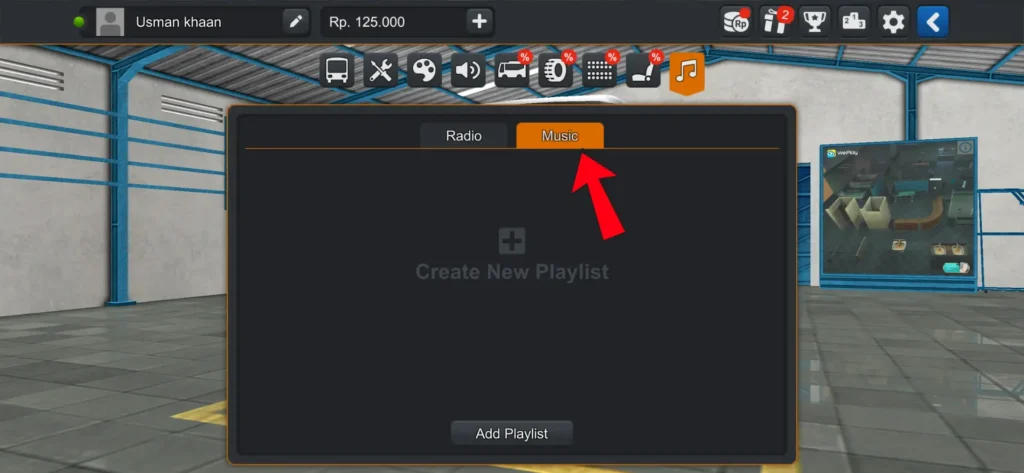
Below you will see the Add Playlist option. Click on it.
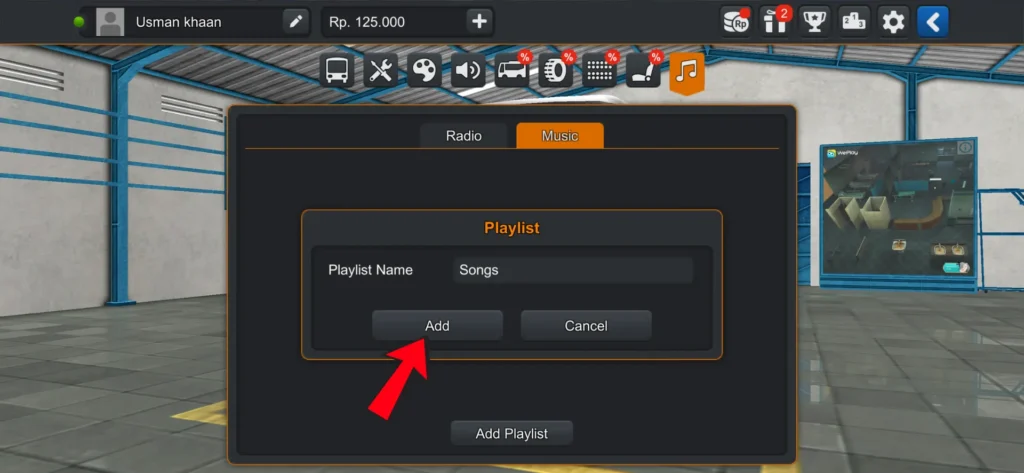
After clicking Add Playlist, you will be asked to enter a playlist name. You can choose any name you like. Once you enter the name, click on Add, and the playlist will be created.
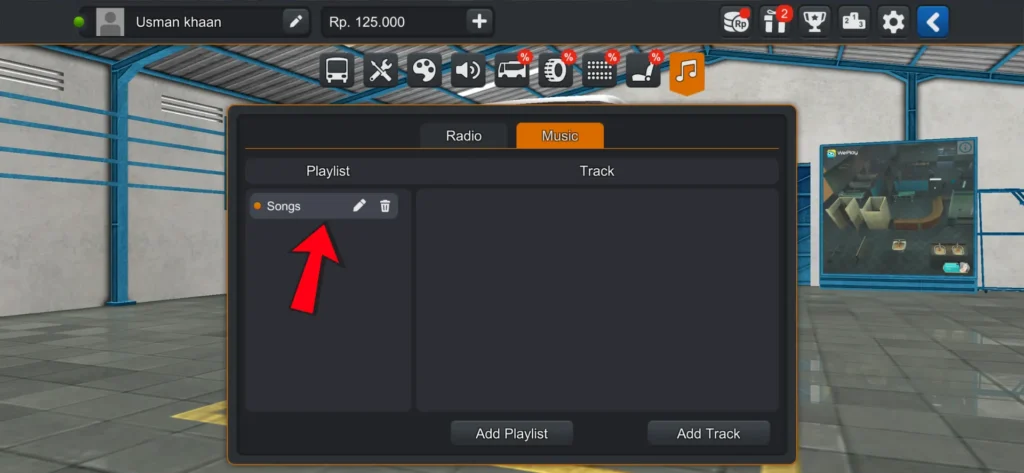
Add Songs to the Playlist
After the playlist is created, you will see the Add Track option below. Click on it to add songs.
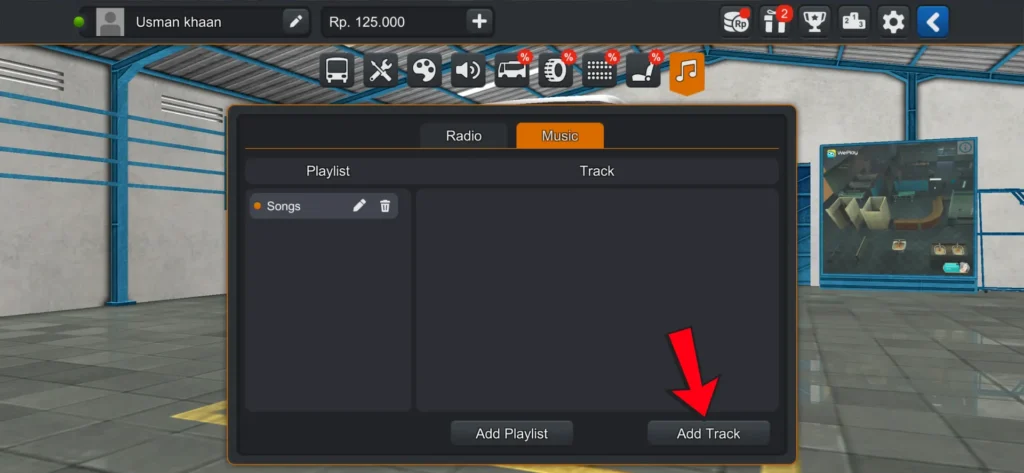
Once you click Add Track, the game will give you the option to open the Device Gallery. From there, you can select the songs that are already downloaded on your mobile.
Play Radio or Music While Driving in BUSSID
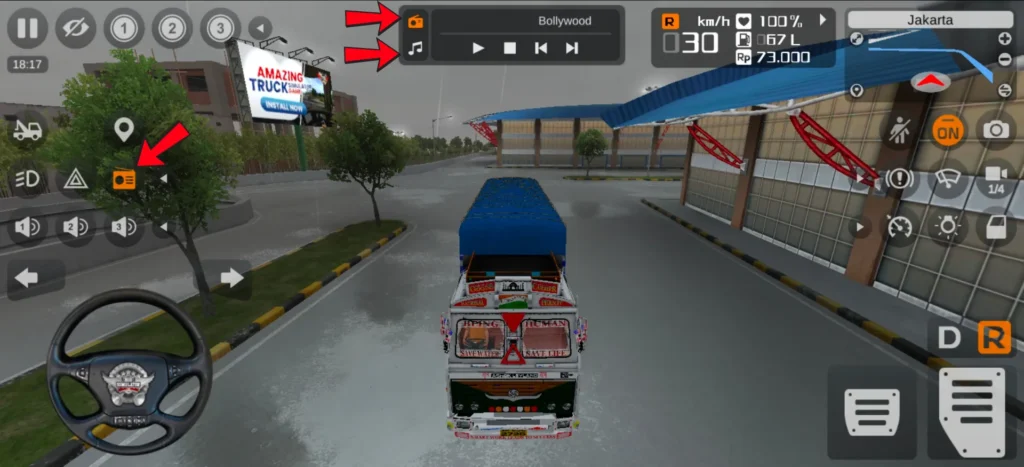
When the game starts, you will see a radio icon among the controls on the left side of the screen. By tapping this icon, the radio player will appear at the top of the screen.
From there, you can easily play the radio channel that you added. Below it, you will also see the Music option, where you can play the songs from the playlist that you created using the songs downloaded on your mobile.
If you tap the radio icon again, the radio player will disappear from the top of the screen, but the radio will continue playing. It is up to you whether you want to keep it visible on the screen or hide it. However, if you want to stop the radio, you will need to stop it manually.
Conclusion
Adding radio is simple once you know the steps. You can add a radio channel using a stream link or play your own songs by creating a playlist in the Music section. This way, you can enjoy music while driving in BUSSID.